Skip to content
EasyPaint
PT EN

Alpha test Skin creator · free

Paint your jet
right in 3D.

No 2D templates, no Photoshop, no endless trial and error. Pick your jet, paint right on the model — airbrush, insignia, metals and camo — and send the finished skin straight to the sim.

Version 1.4.0 (alpha, open to the community) · Windows 10 & 11 · non-profit

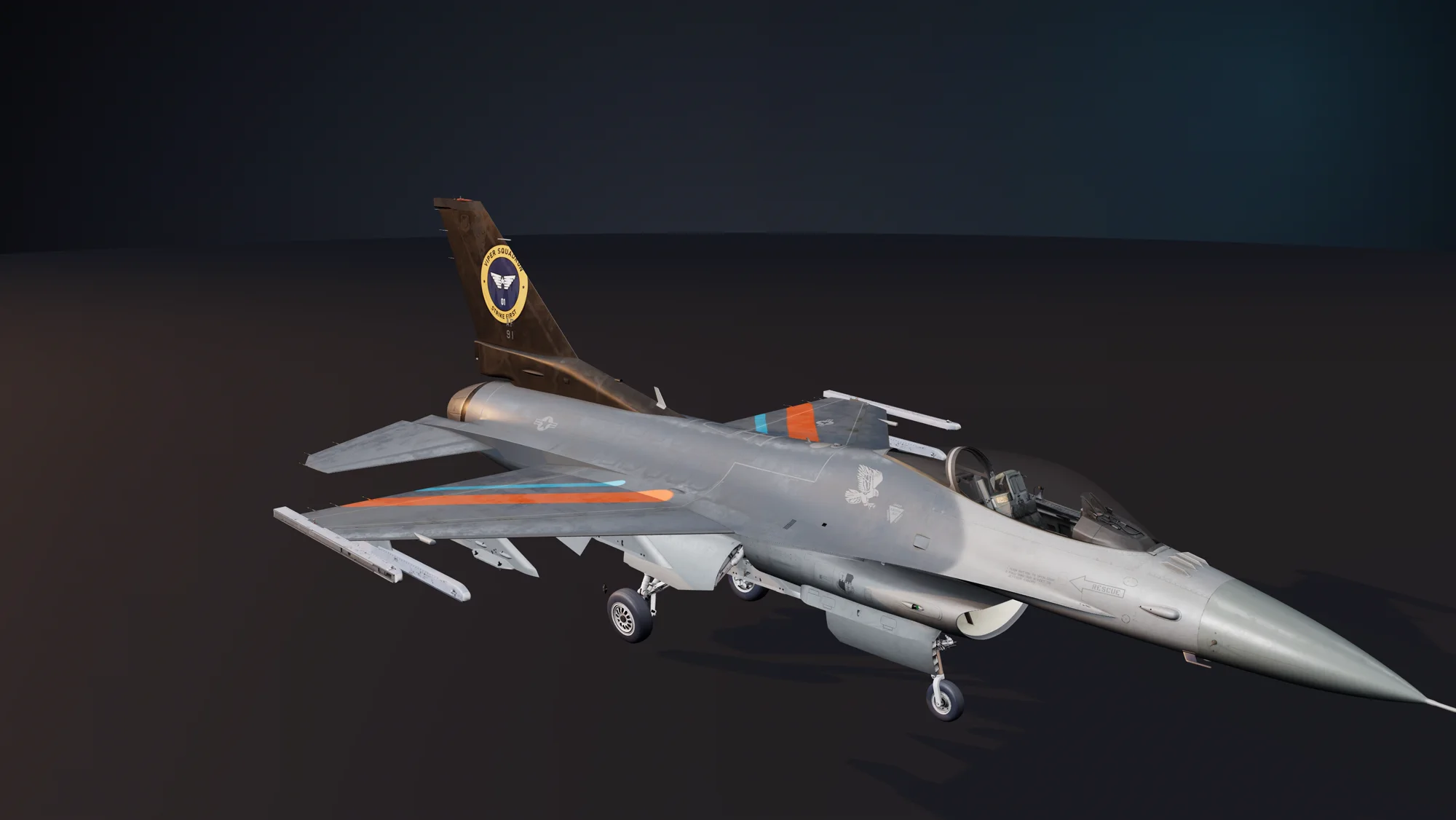
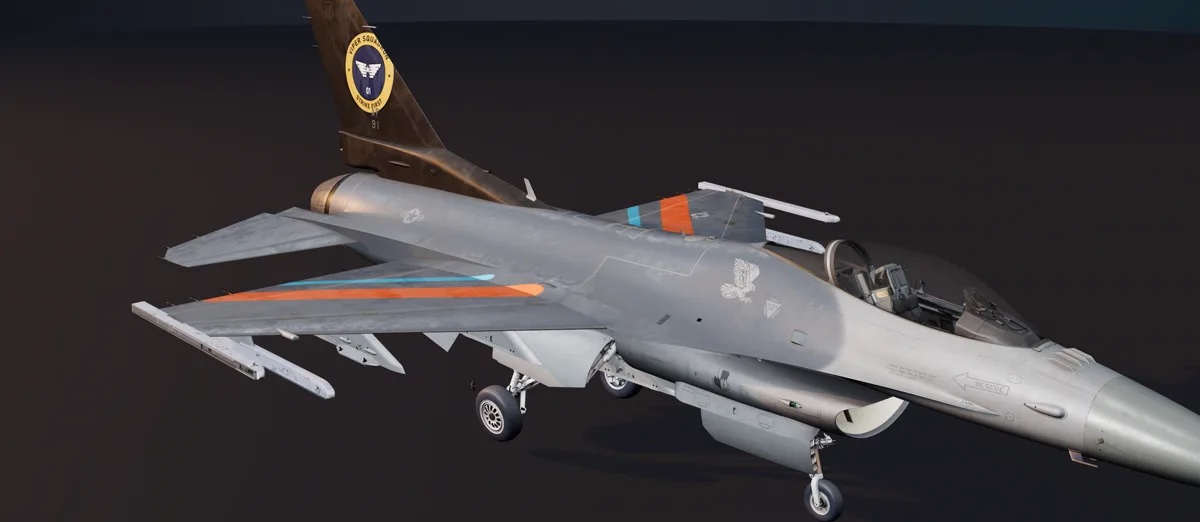
F-16C with a custom livery made in EasyPaint: brown tail with a squadron crest and orange and cyan stripes on the wings.
crest, stripes and tail
painted right on the 3D model
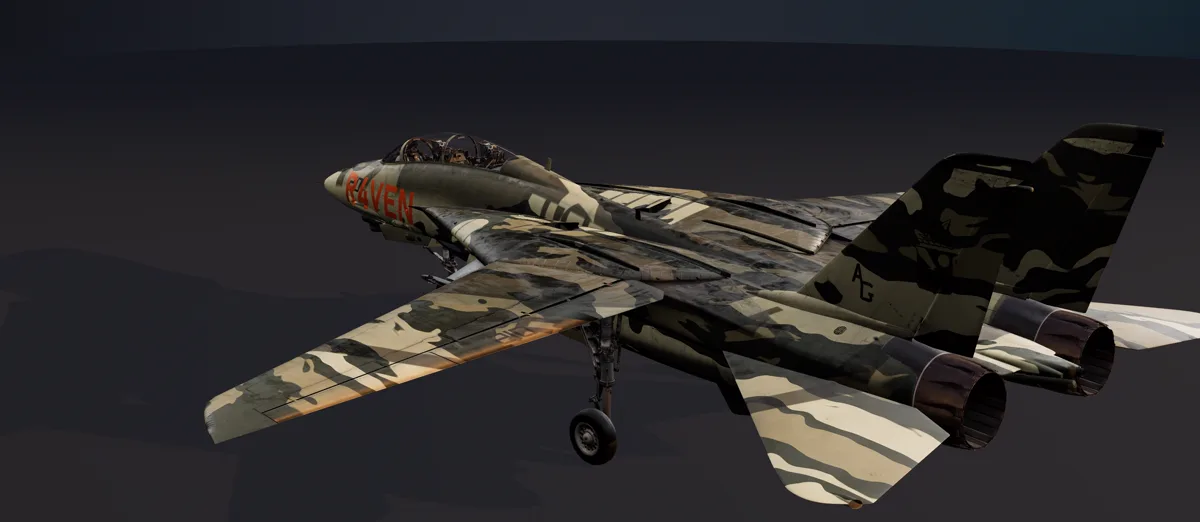
F-14B(U) in tiger-stripe camo with R4VEN on the nose
F-14B(U)
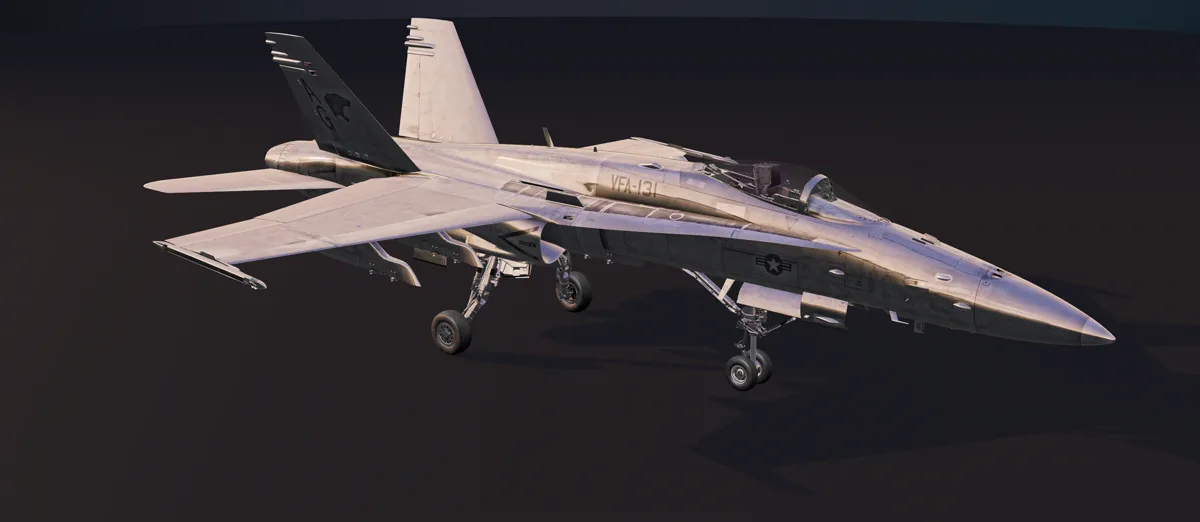
F/A-18C in full chrome
F/A-18C
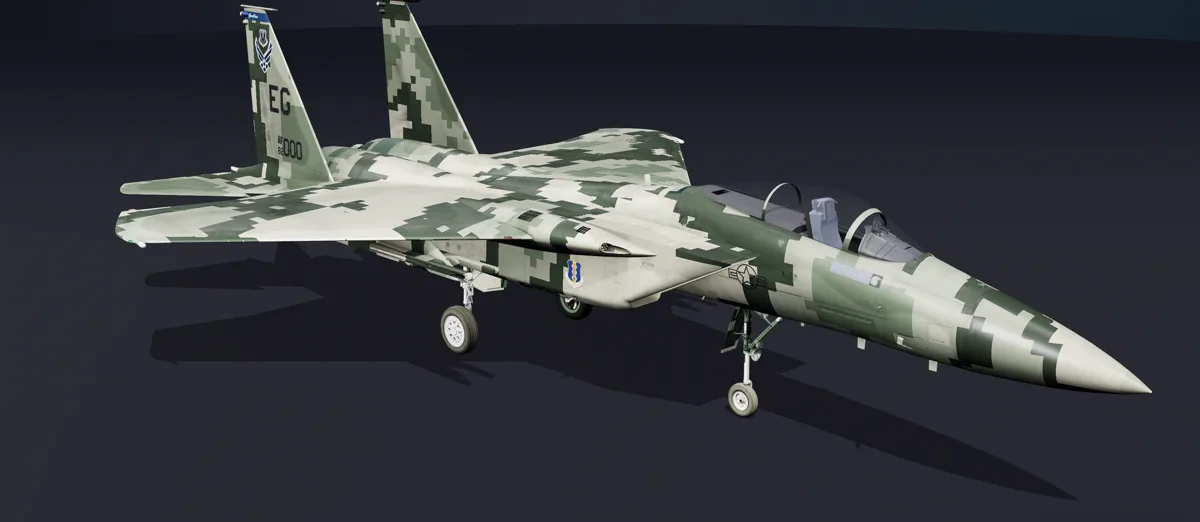
F-15C in green digital camo
F-15C
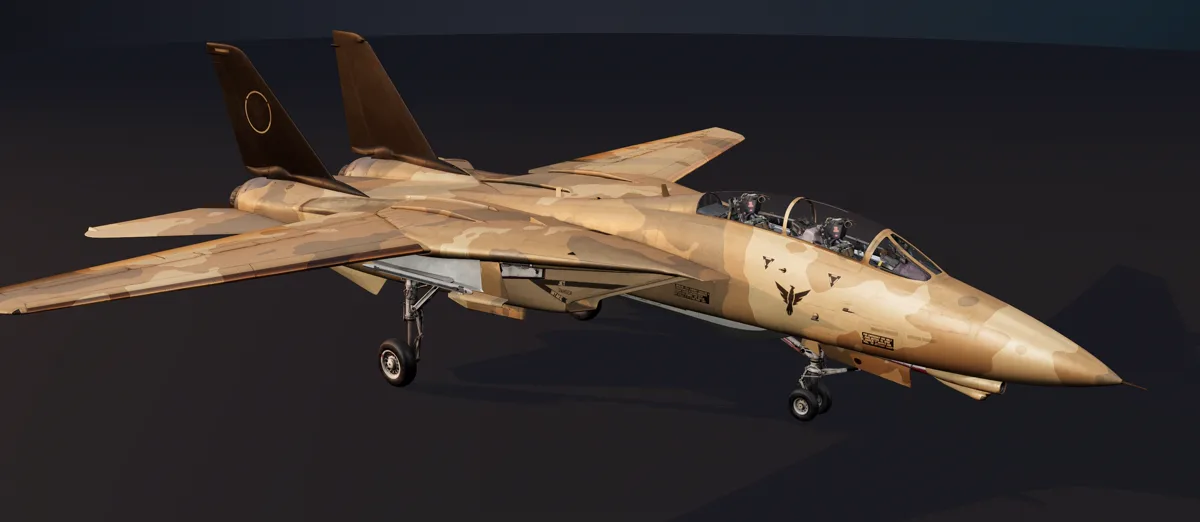
F-14A in a desert scheme
F-14A
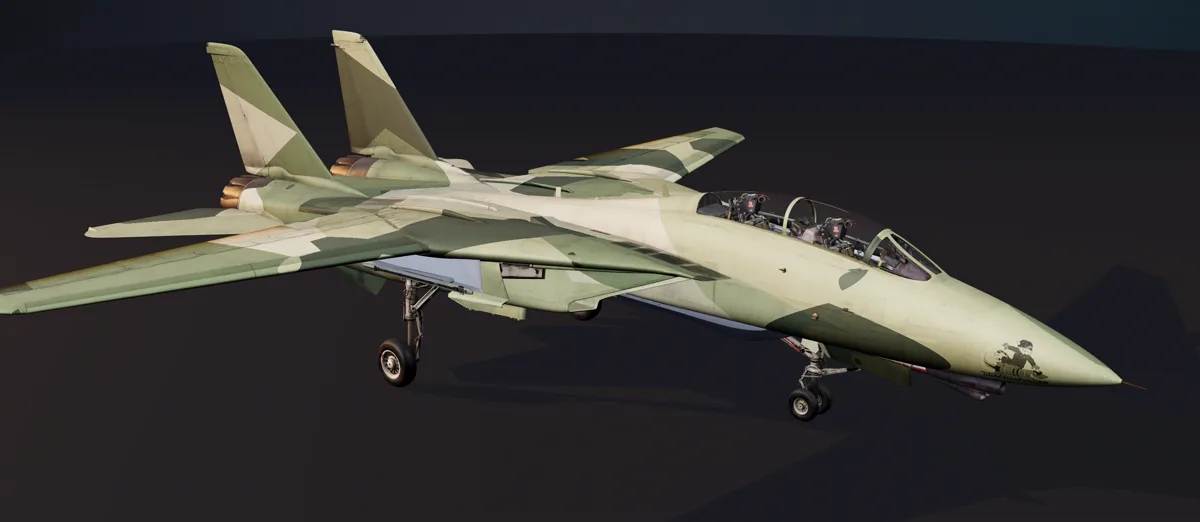
F-14B in green camo
F-14B
F-16C with a crest on the tail and orange stripes
F-16C

01 — The video

One minute and you'll get it.

everything you see was recorded straight from the app — no mock-ups

02 — How it works

From the hangar to the runway in four steps.

  1. 1

    Pick your jet

    EasyPaint finds your sim on its own and lists the jets you have installed. Choose the skin you want to start from — the original is never touched.

  2. 2

    Paint right on it

    Click a part and change its color, grab the airbrush, slap on your squadron crest, put your name on the nose.

  3. 3

    Check it in real light

    See it in daylight, in the hangar, from a distance and side by side with the original. What you see is what you fly.

  4. 4

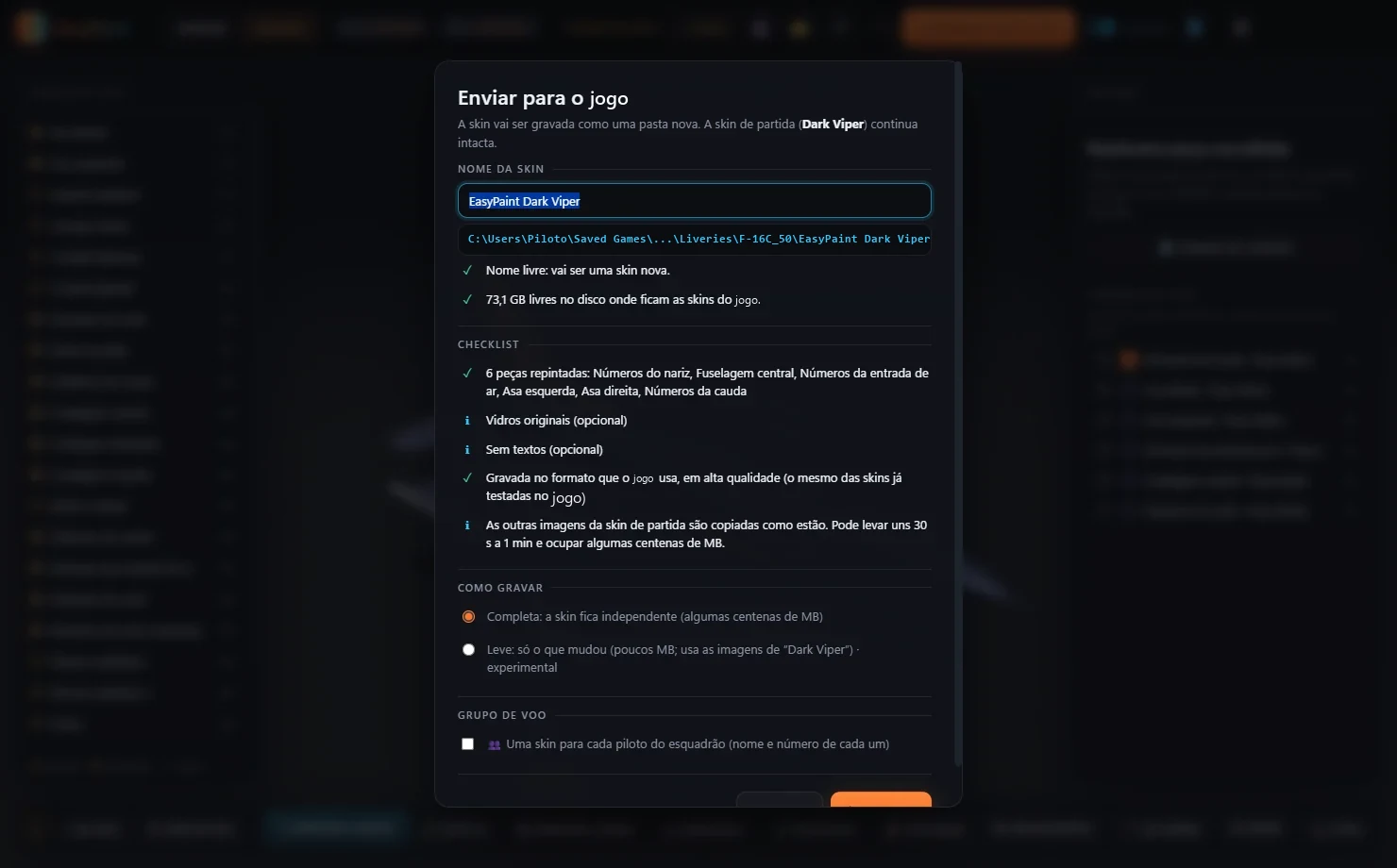
    Send it to the sim

    One click and the skin lands in the right folder. Launch the sim, pick your livery and take off.

03 — Tools

A full color chart — no drawing skills required.

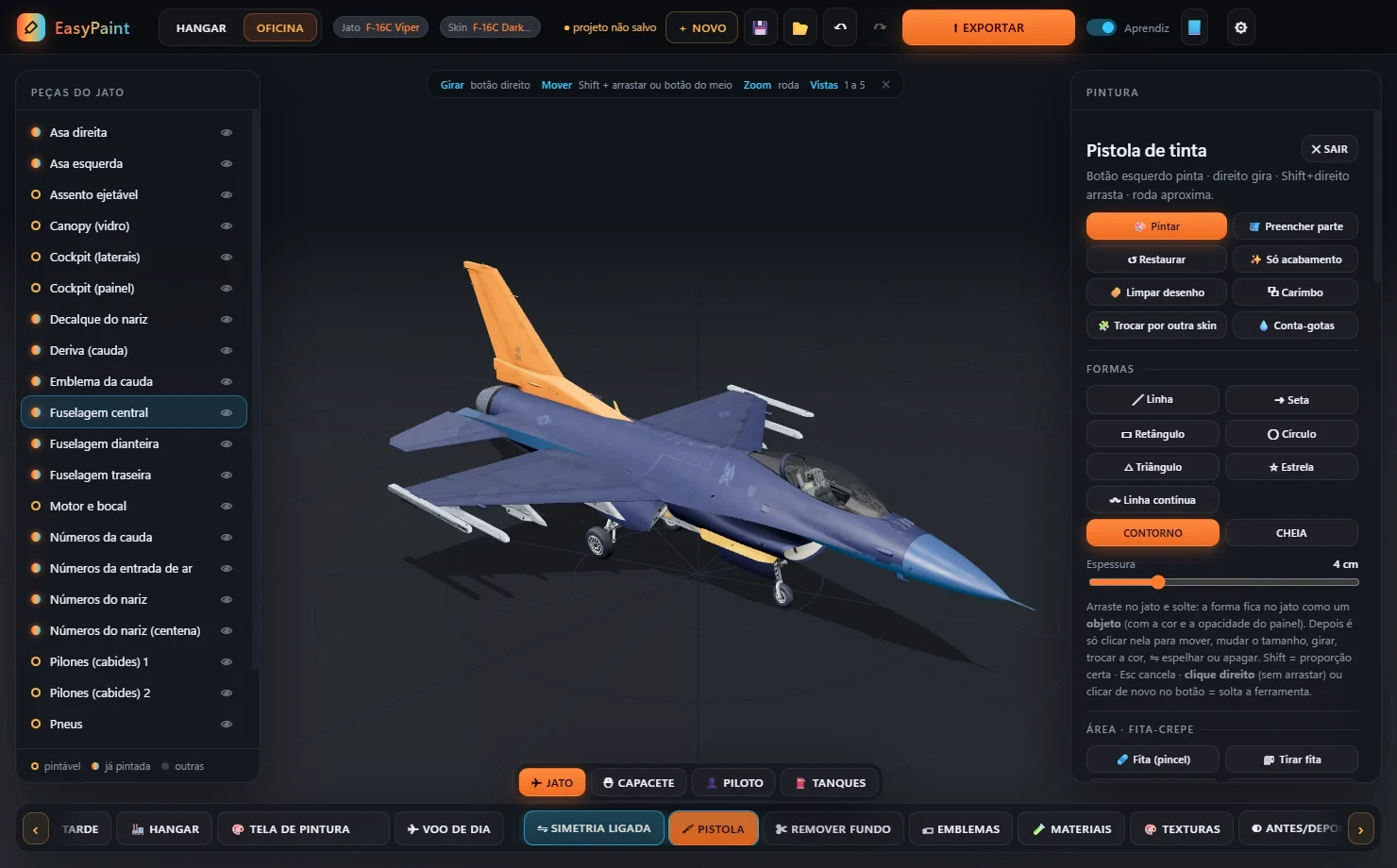
EasyPaint screen
The Workshop: the airbrush with its shapes, the masking tape and the toolbar.

The program's interface is currently in Brazilian Portuguese — the English manual translates every button.

04 — Jets

Eight jets ready to go. And you can prep others.

The jets below come ready, with every part named. For the other aircraft installed in your sim, the Preparar este jato (“Prepare this jet”) button sets everything up on its own (experimental).

  • F-16C Viper
  • F-14A Tomcat Late, Early and Export
  • F-14B Tomcat
  • F-14B(U) Tomcat
  • F/A-18C Hornet
  • F-15C Eagle
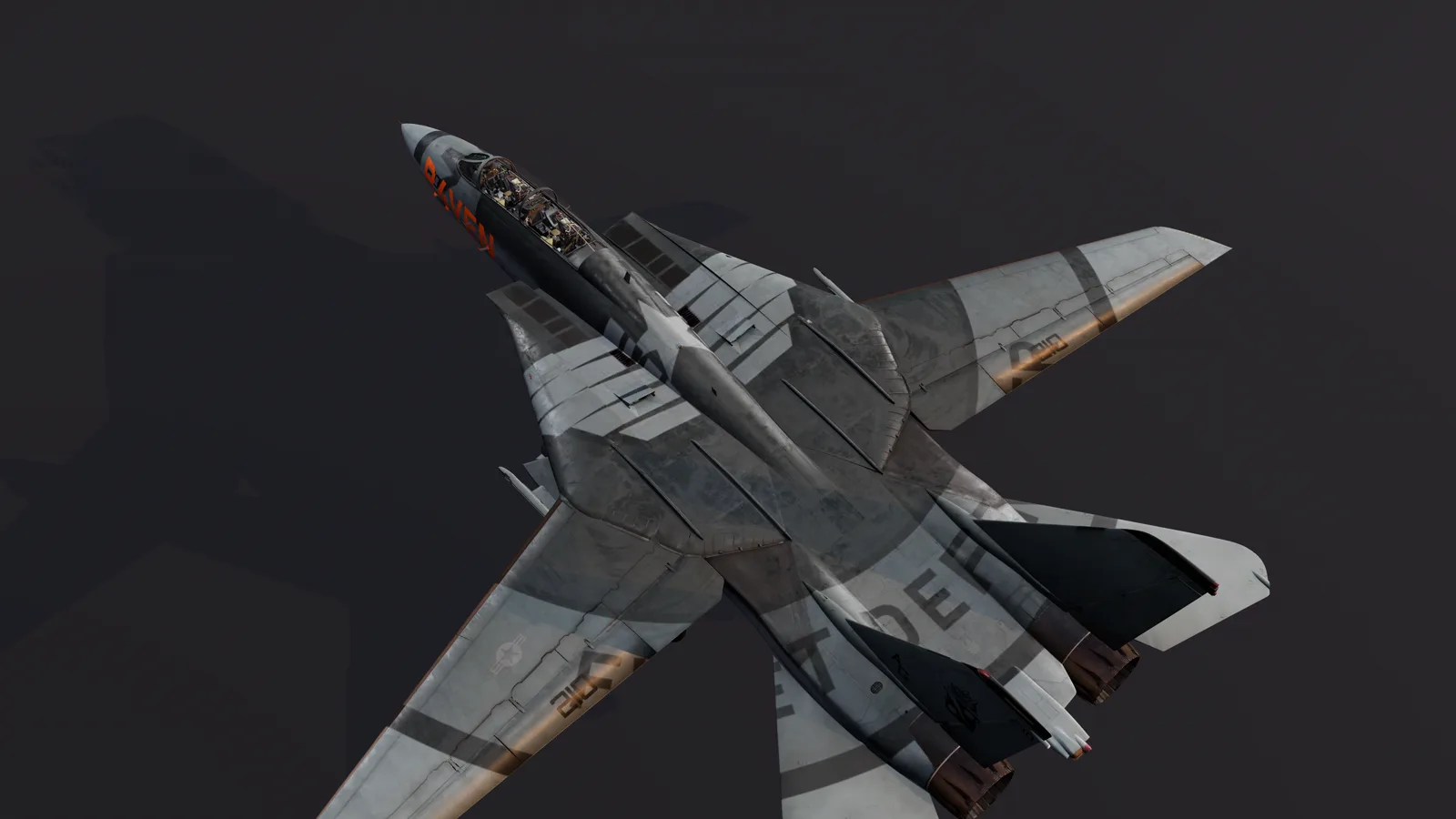
F-14 seen from above with giant tone-on-tone art and R4VEN on the nose
giant "tone-on-tone" art — only shows up close

05 — Download

Grab yours. It's free.

EasyPaint Windows installer

version alpha test 1.4.0

Released
Oct 28, 2026
Size
125.8 MB
System
Windows 10 or 11, 64-bit
Requires
The sim installed on your PC
Language
Interface in Portuguese · manual in English
Download coming soon
Checksum (SHA-256) F33945907DCD6A03477EDC90E8C46CBBAB03A4EF71B26AA7C246EFDA77E59CD5
    Installing

    1. Download the installer and double-click it.
    2. If Windows shows “Windows protected your PC”, click More info and then Run anyway. This happens with new programs from independent developers.
    3. Follow the steps. EasyPaint finds your sim on its own and only writes to the skins folders and to Documents\EasyPaint.
    How can I be sure the file is the original?

    After downloading, open PowerShell in your Downloads folder and type:

    Get-FileHash .\EasyPaint_Setup_1.4.0.exe

    The code it shows must be exactly the same as the checksum next to the download button. If it's different, don't install it — download it again from this site.

    User manual

    20 illustrated chapters, from your first click to a jet ready to fly. Every button is shown as it appears in the program, with its English meaning.

    06 — News

    The hangar board.

    1. launch

      The alpha test is live!

      EasyPaint is now open for the community to test.

    07 — About

    By a sim pilot,
    for sim pilots.

    I'm R4VEN, a virtual pilot who's crazy about jets — and I made EasyPaint. It came from a simple wish: that any pilot could fly their own livery without having to learn an image editor or keep restarting the sim just to see how it turned out.

    No ads, nothing for sale, no sign-up. It's my contribution to the community — and it's now in alpha test, open for everyone to try.

    I hope you all enjoy it, and that EasyPaint makes life easier for every jet lover out there!— R4VEN

    Contact: contact e-mail coming soon

    08 — FAQ

    Questions from new pilots.

    Is it really free?

    Yes. EasyPaint is free and non-profit. The only thing not allowed is copying, selling or redistributing the program anywhere else — always download it from this site.

    Can other pilots see my livery in multiplayer?

    In the sim, a pilot only sees a skin if they have that same skin installed. For your whole squadron to see it, send them the skin folder so they can install it too.

    Does it touch the sim's files?

    No. The original skins are never changed. EasyPaint only writes your livery to the sim's skins folder (under Saved Games) and your projects to Documents\EasyPaint.

    Do I need an internet connection?

    Yes. You need the internet to download EasyPaint and also to use it: when it starts, the program checks online that your version is still supported and up to date. That version check makes sure everyone is always running the build with the latest fixes.

    These terms may change as development or the use of the program requires.

    Is the program in English?

    Not yet — the interface is in Brazilian Portuguese for now. But you won't be lost: the English manual shows every button exactly as it appears on screen, with its English meaning, and the jets, the 3D view and the tools are all very visual.

    What does “alpha test” mean?

    It means EasyPaint is open for the community to test before the final release. You may run into a bug: if you do, write down the jet, the skin and what you were doing, and let me know. Every report makes the next version better.

    My jet isn't on the list. What now?

    Open it in the Hangar and use Preparar este jato (“Prepare this jet”). EasyPaint sets up the parts on its own. It's experimental: some part names may show up as generic.