Paint your jet
exactly the way you pictured it.
EasyPaint makes creating skins visual and simple: you see the actual jet on screen, click where you want to paint, and send it to the sim with one button. No Photoshop, no hassle.
About the language: the program's interface is in Brazilian Portuguese for now, and the screenshots show it as it is. Throughout this manual, every button appears exactly as you'll see it on screen, followed by its meaning in English — for example ⬆ EXPORTAR Export.
01Welcome
With EasyPaint you create new liveries for your jets. The original skin is never changed: whatever you make always becomes a new skin, under the name you choose.
Paint part by part
Click a wing, the tail or the nose and pick a color. It's that simple.
Airbrush
Paint freehand, like a real airbrush: stripes, shading, grime and touch-ups.
Emblems and text
Place your squadron crest, your callsign or some nose art anywhere on the jet.
Metals and finishes
Chrome, polished aluminum, carbon fiber, matte, gloss… with wear and grime.
Camo
Splinter, digital, tiger, ghost, desert, arctic: one click and the whole jet changes.
Straight to the sim
One button saves your finished skin. Then just pick the livery in the sim.
The program explains every button itself. Hover over any button and wait half a second: a card pops up telling you what it does, when to use it and its keyboard shortcut. That's Modo Aprendiz Learner mode (the switch at the top of the screen). Once you know your way around, turn the switch off to see just the name and the shortcut.
02First steps: the Hangar
The first time you open EasyPaint, it finds your sim on its own and shows your jets. This screen is the Hangar: everything starts here.
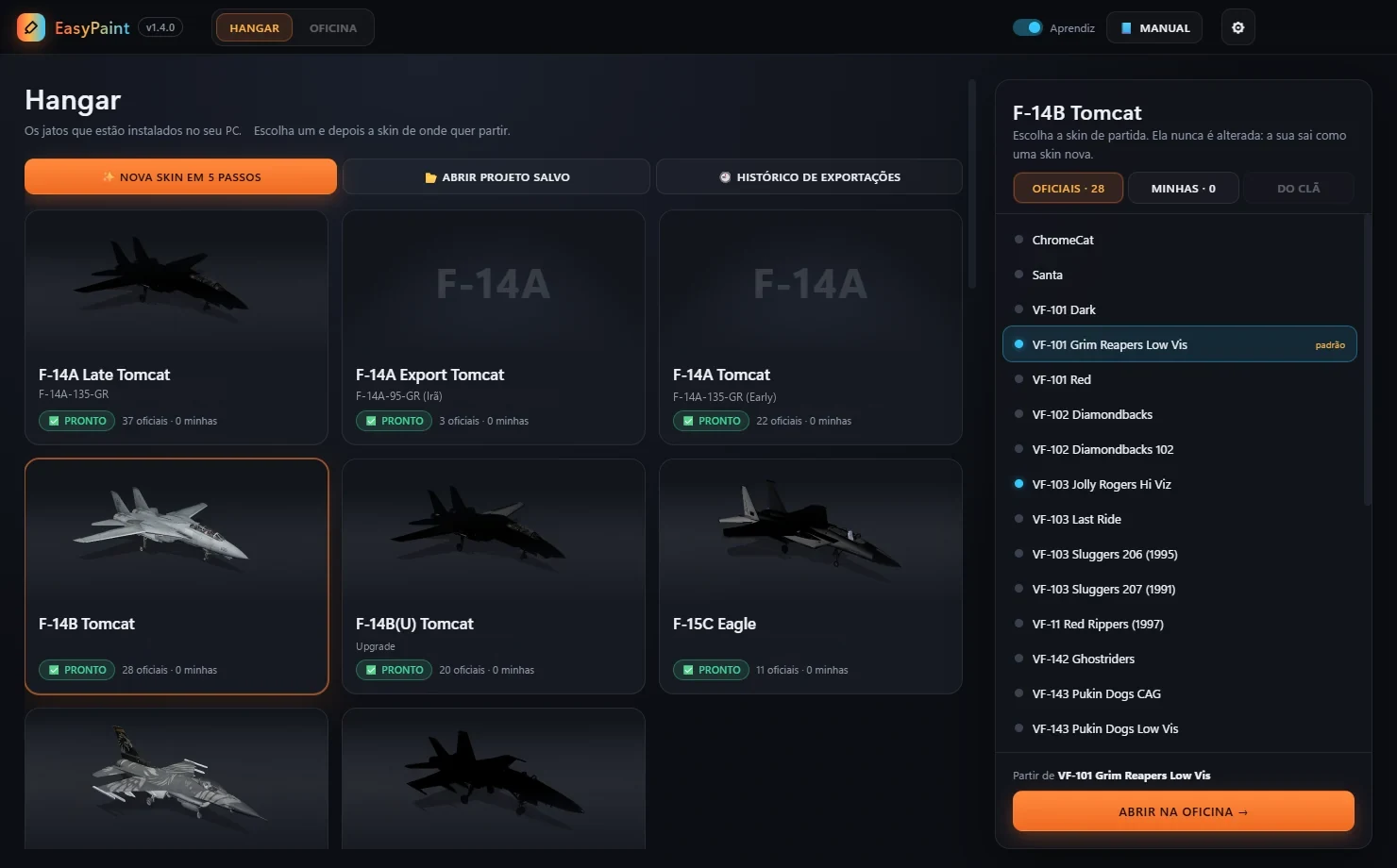
- Jet card. Click it to see its skins. The green ✅ PRONTO Ready badge means the jet is ready to paint.
- Oficiais Official or Minhas Mine: the liveries that ship with the jet, or the skins you've already made.
- The starting skin. The livery you'll start from. It's never changed.
- ABRIR NA OFICINA → Open in the Workshop opens the jet in 3D, ready to paint (or double-click the skin).
- ✨ NOVA SKIN EM 5 PASSOS New skin in 5 steps: the easiest way to make your first skin.
- 📂 ABRIR PROJETO SALVO Open saved project: picks up a livery you saved.
- 🕘 HISTÓRICO DE EXPORTAÇÕES Export history: every skin you've ever sent to the sim.
- 📘 MANUAL: opens the manual at any time.
- Modo Aprendiz Learner mode. When it's on, the help cards show everything.
- ⚙ Configurações Settings (see chapter 18).
The first time you open a skin, EasyPaint takes 30 seconds to a minute to build the jet. From then on, it opens instantly.
03New skin in 5 steps
Never made a skin before? Start with the ✨ NOVA SKIN EM 5 PASSOS New skin in 5 steps button in the Hangar. It asks the right questions and sets everything up for you.
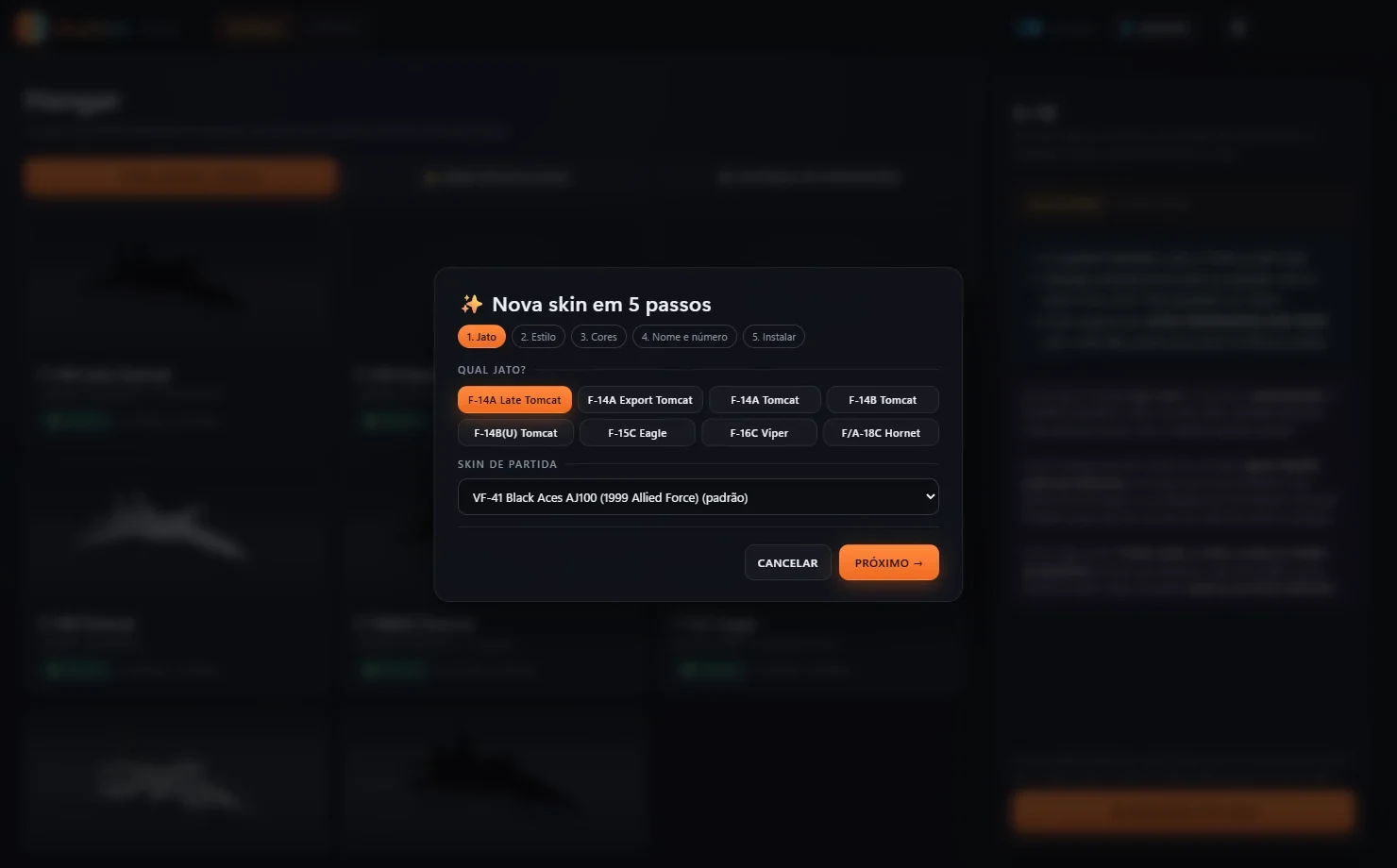
- Jato Jet: pick the jet and the starting skin.
- Estilo Style: plain, camo, aggressor, commemorative or squadron.
- Cores Colors: the main colors of the livery.
- Nome e número Name and number: the name, number and emblem that go on the jet.
- Instalar Install: the skin's name. EasyPaint opens the Workshop with everything applied, plus the window to send it to the sim.
You can change all of it afterwards in the Workshop, with every tool available.
04Getting to know the Workshop
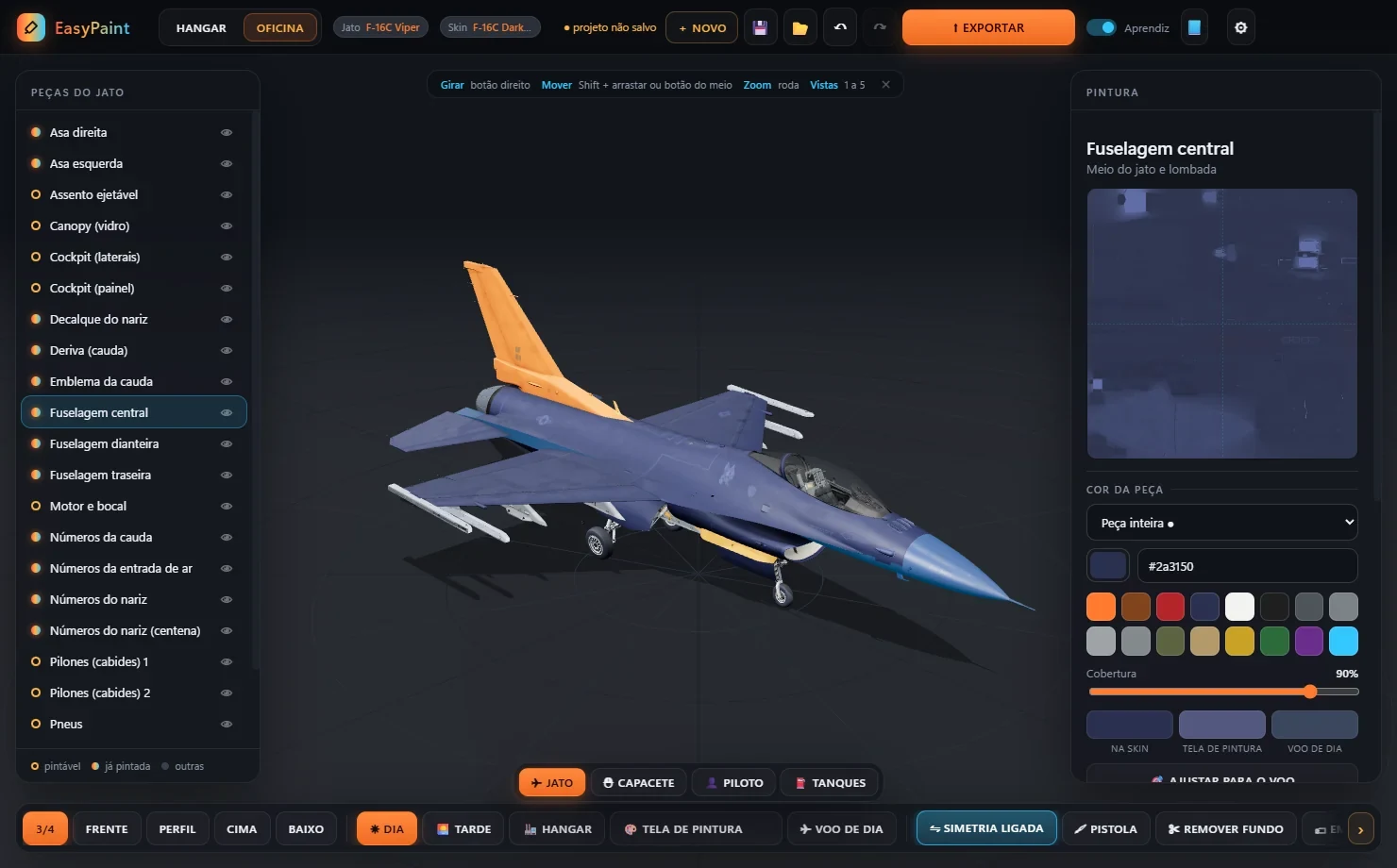
The Oficina Workshop is where you paint. The jet sits in the middle, true to life, just as it looks in the sim. Around it are the parts list, the paint panel and the tools.
- The jet's parts. The colored dot marks the parts you can paint. The eye 👁 hides or shows a part.
- Mouse controls reminder (the ✕ hides it).
- Paint panel. The options for the selected part or the active tool. Below them are the skin layers.
- Tabs ✈ Jato Jet · ⛑ Capacete Helmet · 👤 Piloto Pilot · ⛽ Tanques Tanks (on the jets that have them).
- Toolbar: views, lighting and painting tools (chapter 6).
- + NOVO New goes back to the Hangar to start another livery.
- 💾 saves your project so you can carry on later.
- ↶ ↷ undo and redo.
- ⬆ EXPORTAR Export sends the finished skin to the sim.
Moving the camera around the jet
| To | Do this |
|---|---|
| Rotate the jet | hold the right mouse button and drag |
| Pan the view | Shift + drag, or hold the middle button (the wheel) and drag |
| Zoom in and out | scroll the mouse wheel |
| Preset views | 1 3/4 · 2 front · 3 side · 4 top · 5 bottom |
With the airbrush or emblems active, the left button paints or places. To rotate, always use the right one.
05Painting a part
The quickest way to change the look of your jet: pick a part and a color.
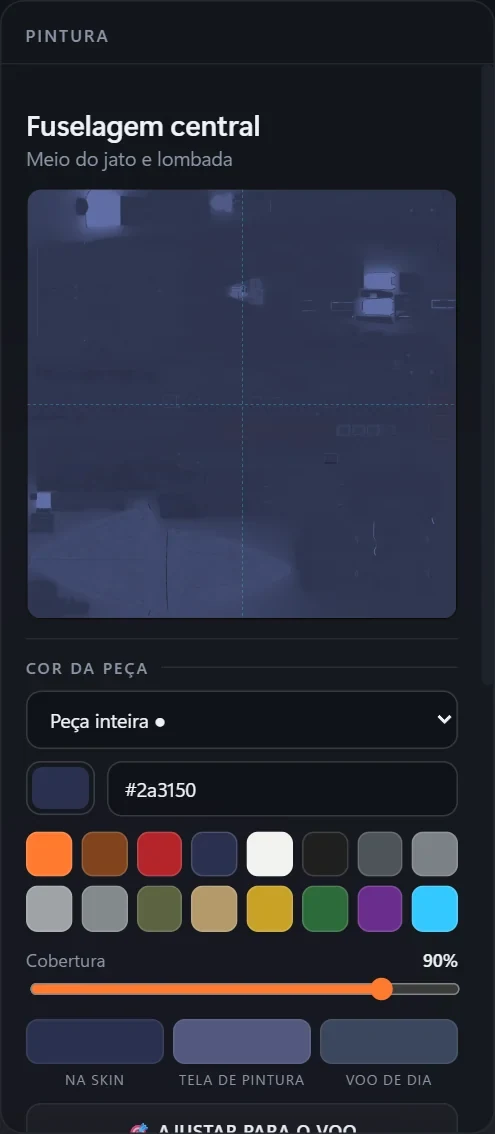
- The selected part and where it is.
- The part's paint, laid out flat, like a paper pattern. You can draw on it directly.
- The color: click the square to choose any color, or type in its code.
- Preset colors, one click away.
- Coverage: how much the new color covers the old one. Lower lets the skin's markings and grime show through.
- How the color will look on the skin, on the sim's paint screen and in daylight flight.
- Click the part on the jet or in the list on the left.
- Pick the color. Done: the part is already painted.
- Made a mistake? Ctrl+Z undoes it. To go back to the original color, use ✕ TIRAR COR Remove color.
The sim shows colors lighter than they really are, especially on the paint screen. The 🎯 AJUSTAR PARA O VOO Adjust for flight button corrects the color so that, in the air, it looks the way you chose it.
Writing text
In the same panel, under TEXTO Text, type your name, callsign or squadron and click + ESCREVER NO JATO Write on the jet. Then click the spot on the jet where the text should go. The text becomes an emblem: you can drag, stretch and rotate it, and change its font, color and outline (chapter 9).
06The toolbar
Along the bottom of the Workshop are the views, the lighting and the tools. If the window is narrow, the bar scrolls sideways: scroll the mouse wheel over it, drag it, or use the ‹ › arrows.

- Views: 3/4, front, side, top and bottom.
- Lighting: day, afternoon, hangar and the sim's own lighting (paint screen and daylight flight).
- ⇋ ATIVAR SIMETRIA Turn on symmetry: whatever you do on one side appears on the other (chapter 8).
- 🖌 PISTOLA Airbrush: freehand painting (chapter 7).
- ✂ REMOVER FUNDO Remove background: strips the background from one of your images (chapter 9).
Further to the right: 🏷 EMBLEMAS Emblems, 🧪 MATERIAIS Materials, 🎨 TEXTURAS Textures, ◐ ANTES/DEPOIS Before/after, 🔭 DE LONGE From a distance, ⟳ GIRAR Spin and 📷 FOTO Photo.
07Airbrush
The pistola airbrush paints freehand, right on the jet, just like a real one. Brush size is measured in real centimeters on the jet.
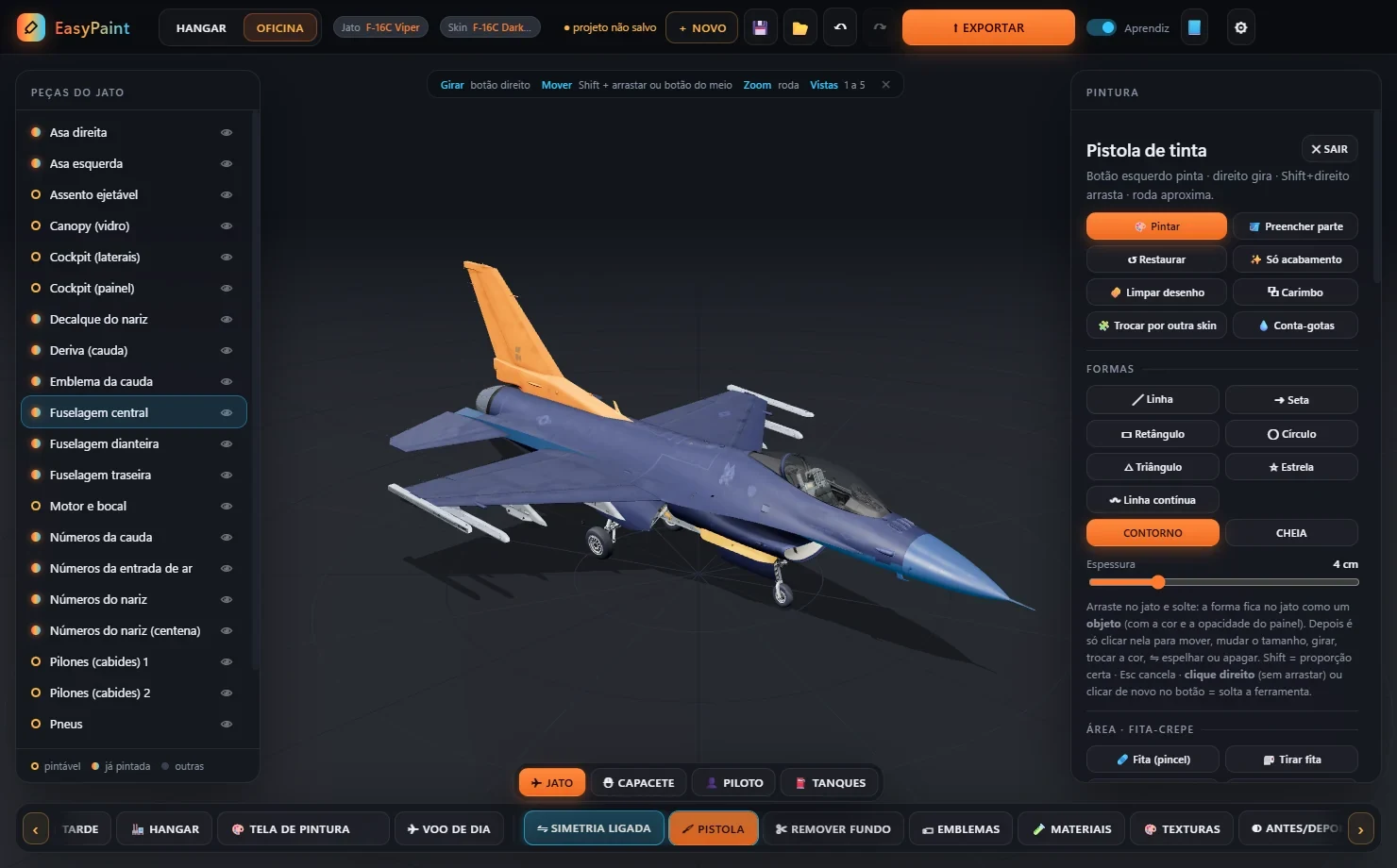
- Airbrush panel: modes, shapes, brushes, color and masking tape.
- 🖌 PISTOLA Airbrush turns it on and off (shortcut B).
| Mode | What it does |
|---|---|
| Pintar Paint | paints wherever you move the mouse with the left button held down |
| Preencher parte Fill part | paints the whole part you click, in one go |
| Restaurar Restore | brings back the skin's original paint wherever you brush |
| Só acabamento Finish only | changes only the sheen (matte, gloss, metal) without changing the color |
| Limpar desenho Clean artwork | erases artwork from the skin (such as an old emblem) while keeping the grime and markings underneath |
| Carimbo Clone stamp | copies a patch of paint to somewhere else |
| Trocar por outra skin Swap from another skin | brings in a patch from another skin of the same jet |
| Conta-gotas Eyedropper | picks up the color from a spot on the jet |
Shapes
Line, arrow, rectangle, circle, triangle, star and continuous line, outlined or filled. Drag on the jet and let go: the shape becomes an object. Then just click it to move, resize, rotate, recolor, mirror or delete it with the ✕.
Masking tape
Just like a real painter's tape: lay the fita-crepe masking tape wherever the paint must not go, then spray over it without worry. The tape protects against the airbrush, materials, textures and emblems, and it does not end up in the skin. When you're done, peel it all off at once.
Trava na parte Part lock is on by default: the paint stays on the part where you started, without bleeding onto the one next to it. A right-click (without dragging) drops the current tool.
08Symmetry: both sides alike
Turn on ⇋ ATIVAR SIMETRIA Turn on symmetry and whatever you put on one side of the jet (airbrush, shapes, emblems and text) shows up mirrored on the other side at the same time.
- Anything created mirrored becomes a pair 🔗: changing one (moving, scaling, rotating, recoloring, deleting) changes the other — even after you turn symmetry off.
- Want the two to be different? Use ✂ SEPARAR O PAR Split the pair in the item's panel.
- Forgot to turn symmetry on? On any emblem, ⇋ ESPELHAR NO OUTRO LADO Mirror to the other side creates the pair instantly.
09Emblems, text and decals
Place one of your own images (your squadron crest, a mascot, a logo) anywhere on the jet, at any size you like.
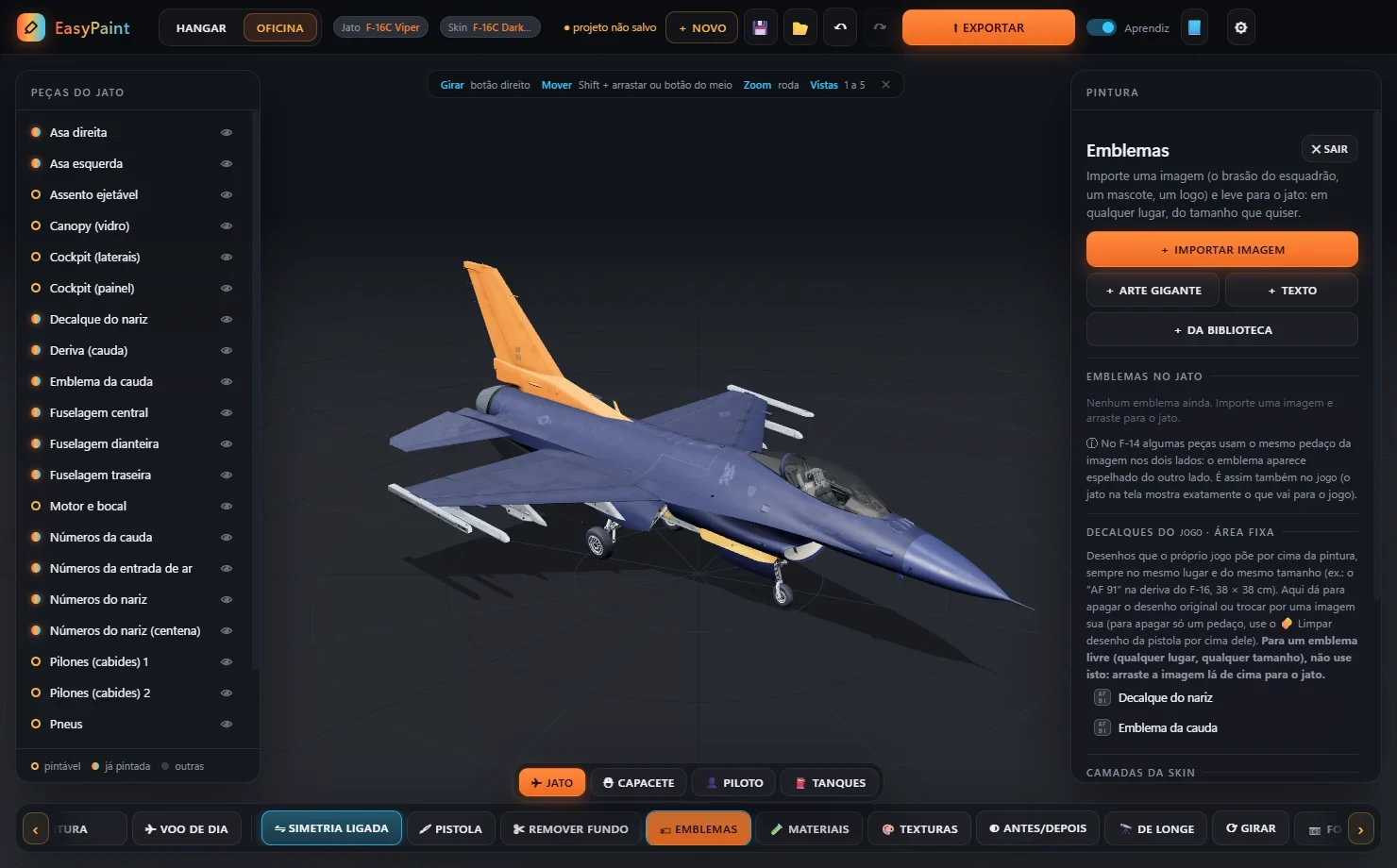
- Emblems panel: import an image, giant art, text, the library, the list of emblems on the jet and the factory decals.
- 🏷 EMBLEMAS Emblems turns it on and off (shortcut E).
- Click + IMPORTAR IMAGEM Import image and choose the image (PNG, JPG, WEBP, AVIF or SVG).
- Drag the thumbnail onto the jet. You see the emblem in place while you drag. Double-clicking the thumbnail drops it in the middle of the screen.
- Adjust it with the handles: the corners resize, the sides stretch, the dot on top rotates and the ✕ deletes. You can also type the width and height in centimeters.
| Button | What it's for |
|---|---|
| + TEXTO Text | name, callsign, number: with font, weight, letter spacing, color, outline and shadow |
| + ARTE GIGANTE Giant art | a huge “tone-on-tone” design that darkens or lightens the paint (the style of display-team skins) |
| + DA BIBLIOTECA From the library | ready-made pieces to build an emblem: circle, shield, pennant, wings, lightning bolt, stars, mascot… |
| Decalques de fábrica Factory decals | markings the sim itself always puts in the same place (like the “AF 91” on the F-16's tail): you can erase them or swap them for your own image |
✂ Removing an image's background
Got a crest on a white background? Click ✂ REMOVER FUNDO Remove background, pick the image and the AI strips the background for you. Then you can touch up the edges with the brush and use the image straight away as an emblem. The AI runs on your own computer; the first time, it installs with a single click.
10Materials and metals
Change the material of the whole jet or just some parts: a “natural metal” jet, a titanium exhaust, a carbon-fiber nose…
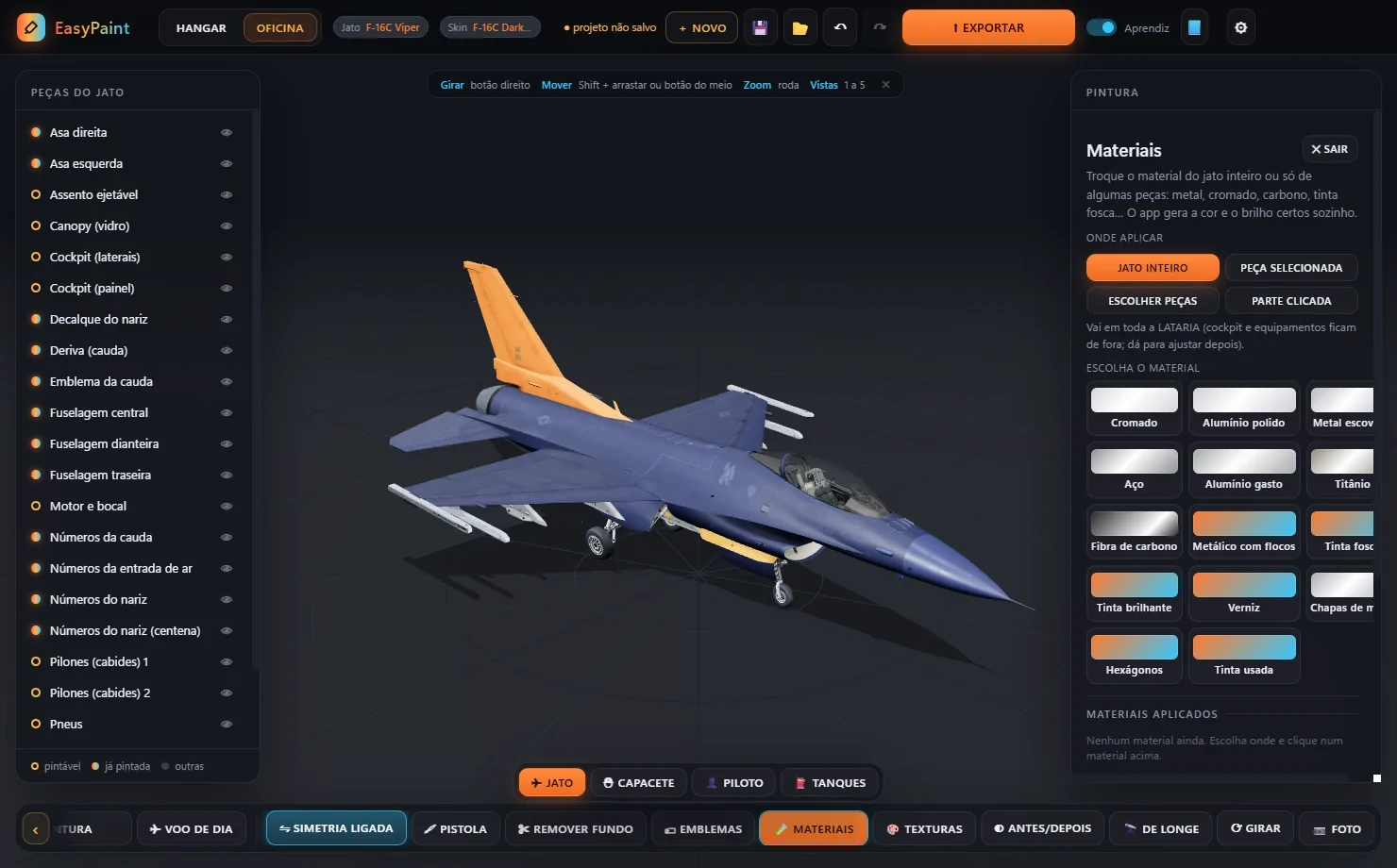
- Materials panel: choose the material, where to apply it and how weathered it looks.
- 🧪 MATERIAIS Materials turns it on and off.
Materials: chrome, polished aluminum, brushed metal, steel, worn metal, titanium, carbon fiber, metal flake, matte, gloss and clear coat.
Weathering: wear, grime, scratches and fading, as much as you like.
“Jato inteiro” Whole jet means the outer skin only: EasyPaint automatically leaves out the cockpit, the seats and the equipment, so you don't end up chroming the instrument panel. The list shows everything, so you can tick or untick parts.
11Camo and textures
Camo the whole jet in one click, or bring in your own work.
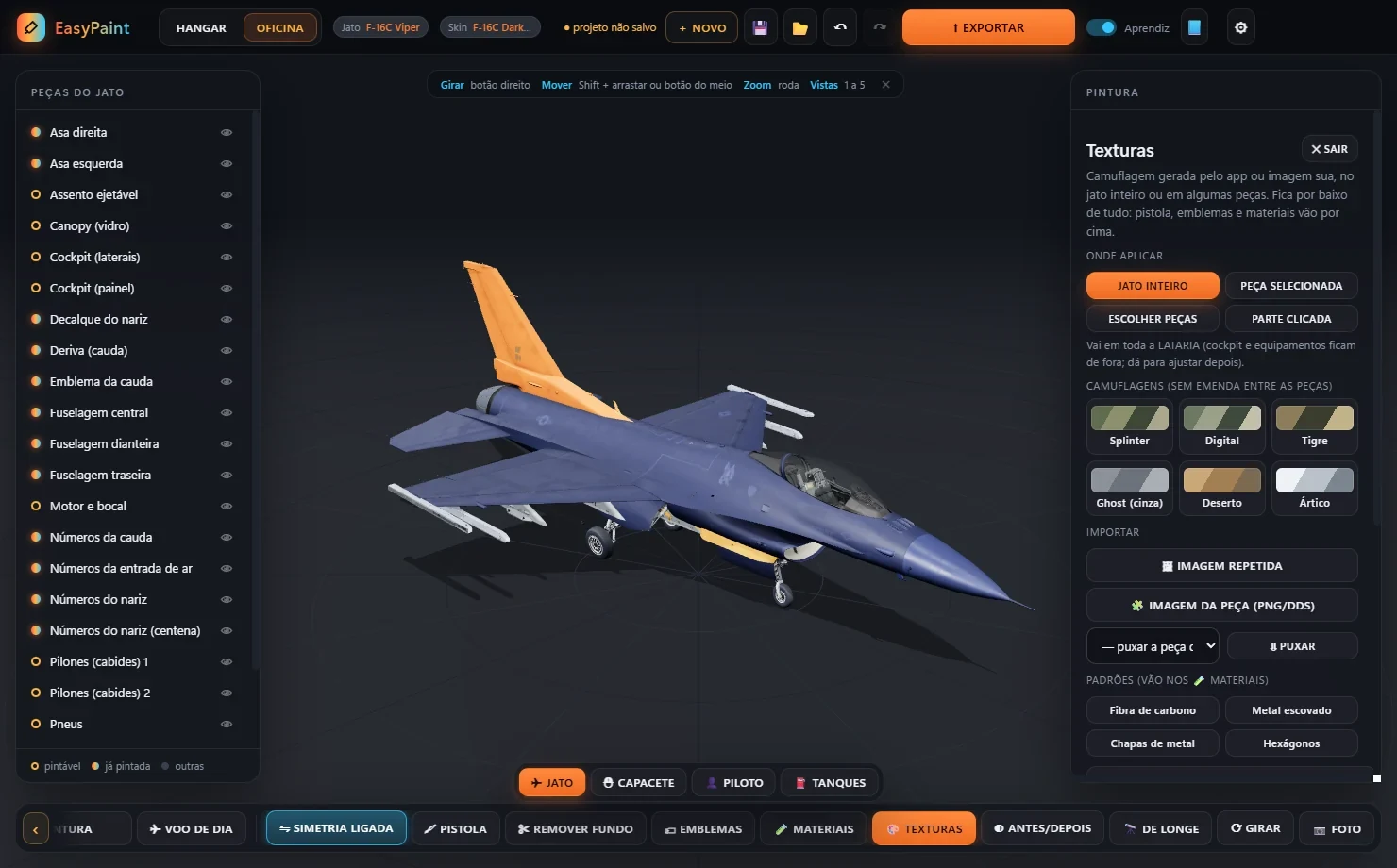
- Textures panel: ready-made camo, tiled images and the full paint of a single part.
- 🎨 TEXTURAS Textures turns it on and off (shortcut C).
- Camo: splinter, digital, tiger, ghost, desert and arctic, in your colors. The 🎲 rolls a new pattern. The pattern flows across the jet with no seams between parts.
- Tiled image: one of your images repeated over the whole jet (panels, hexagons, patterns).
- A part's full paint: a ready-made image (made in another program, for example) or the same part taken from another skin.
The texture sits underneath everything: the airbrush, materials and emblems all go on top of it.
12Helmet, pilot, tanks and canopy
On the jets that have them, the tabs at the top of the bar show just the ⛑ helmet, the 👤 pilot or the ⛽ tanks, large in the middle of the screen. Use the same tools as on the jet: airbrush, emblems, text, materials and textures. The ✈ JATO Jet tab goes back to the whole jet.
Canopy glass: click the jet's canopy (or 🪟 VIDROS DO CANOPY Canopy glass) to choose the glass: smoked, mirrored, tinted… It's included in the skin.
13Skin layers
Everything you do shows up in the CAMADAS DA SKIN Skin layers list in the right-hand panel, with the top layer first.
- Each layer's number shows the order it's painted in (from bottom to top).
- Grab the ⠿ handle and drag to change the order — for example, to put one emblem on top of another.
- You can reorder within the same type (emblems with emblems, materials with materials). Between types the order is always the same: colors → textures → materials → airbrush → tone-on-tone → emblems → factory decals.
- Symmetry pairs are marked with 🔗.
14Checking the result
Before sending it to the sim, see how the livery will look.
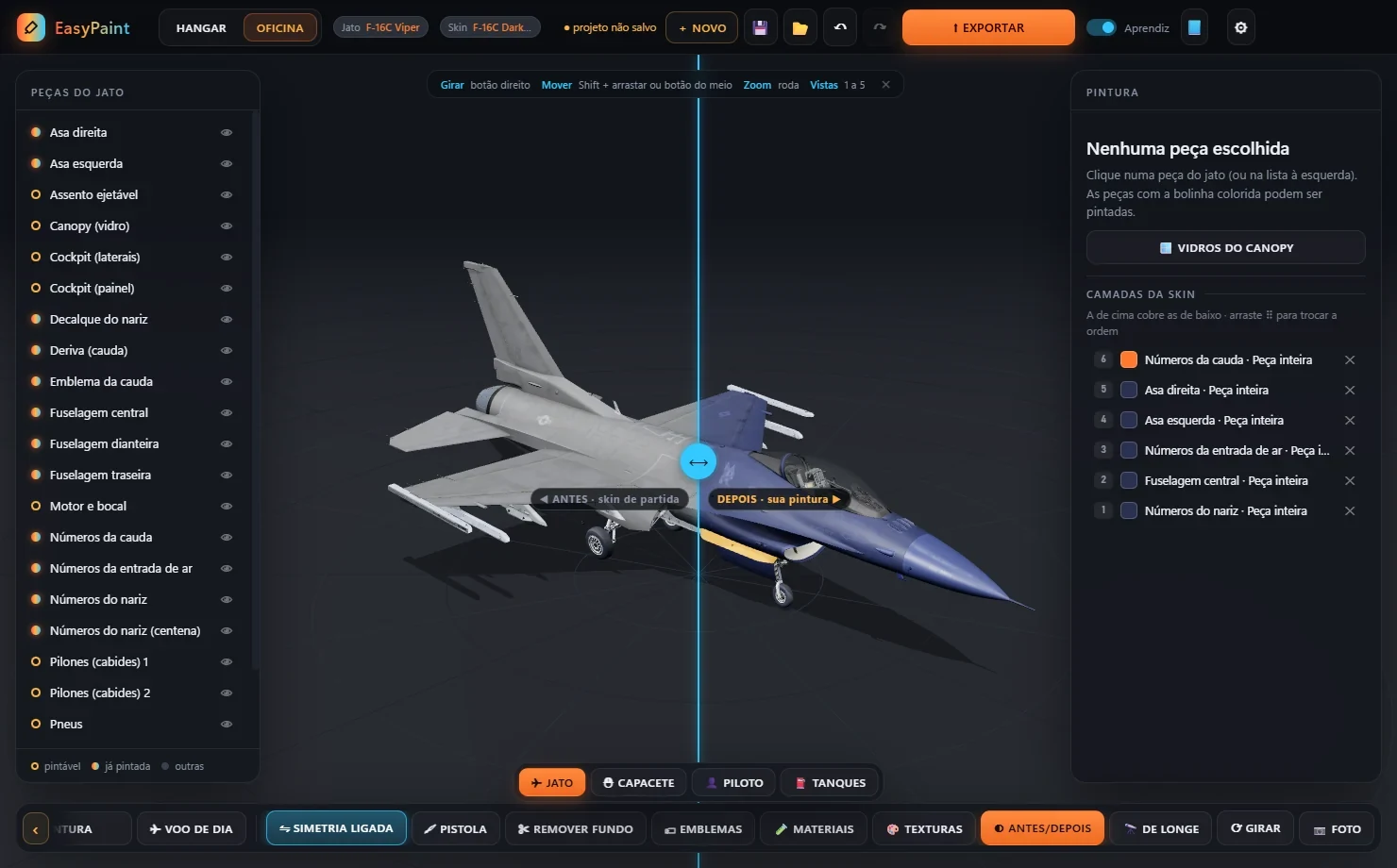
- Before-and-after panel.
- ◐ ANTES/DEPOIS Before/after: a slider splits the jet. On the left, the starting skin; on the right, yours. Drag the ⟷ handle to compare (shortcut A).
- 🎨 TELA DE PINTURA Paint screen and ✈ VOO DE DIA Daylight flight: mimic the sim's lighting, so you know how the color will look in the sim.
- 🔭 DE LONGE From a distance: shows the jet at 1, 3 or 5 km, to check whether the livery still stands out from afar (shortcut L).
- ⟳ GIRAR Spin: the jet turns slowly, like in a showroom (shortcut G).
- 📷 FOTO Photo: saves a screenshot without the panels, ready to show off on Discord (shortcut F).
15Saving and coming back later
The skin that goes to the sim is the final result. To be able to work on it again another day, save the project.
| Button | What it does |
|---|---|
| 💾 Ctrl+S | saves EVERYTHING you've done (colors, text, airbrush, emblems with their images, canopy glass) in an EasyPaint project |
| 📂 Ctrl+O | opens a saved project and picks up where you left off |
| + NOVO New Ctrl+N | goes back to the Hangar for another livery. If anything is unsaved, it asks: SALVAR Save, DESCARTAR Discard or CANCELAR Cancel |
| ↶ Ctrl+Z | undoes the last change (Ctrl+Y redoes it). Feel free to experiment! |
Autosave: every minute, EasyPaint quietly saves a copy of what you're working on. If the program closes unexpectedly, it offers to recover your work the next time you open that same skin.
16Sending it to the sim
Happy with the result? Click ⬆ EXPORTAR Export (Ctrl+E).
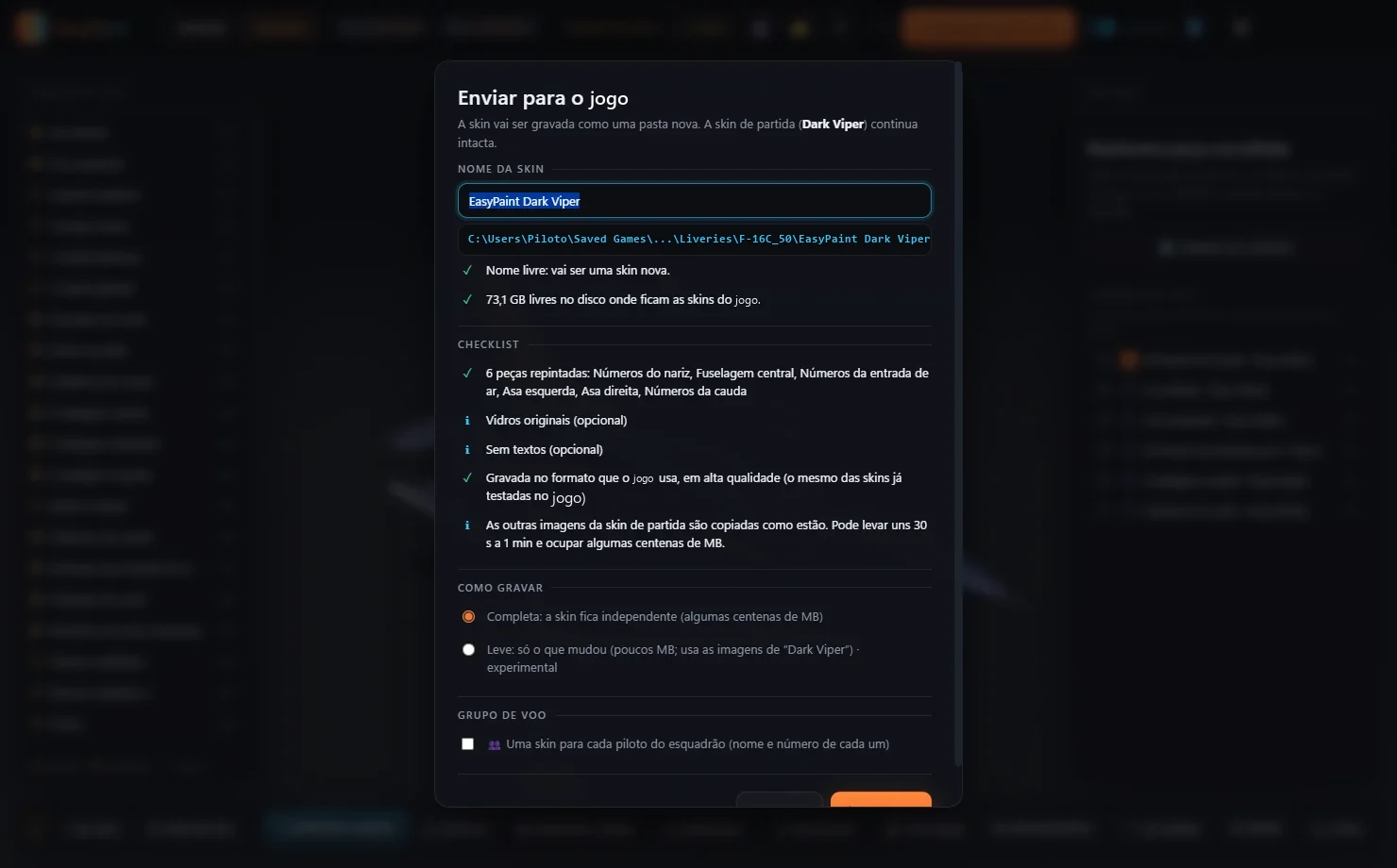
- The skin's name, exactly as it will appear in the sim.
- Where it will be saved, in the sim's skins folder.
- Checks: whether the name is free, whether there's enough disk space and what goes into the skin.
- How to save it: completa full (the skin stands on its own) or leve light (only what changed, takes up little space).
- Choose the name and click to save. It takes 30 seconds to a minute.
- Launch the sim and pick the jet. On the paint screen (Paint & Loadout), your skin appears in the list under the name you gave it.
- Nothing is deleted or overwritten: if the name already exists, EasyPaint asks for another one.
- 👥 Grupo de voo Flight group: saves one skin per squadron pilot, each with their own name and number.
- Other variants of the jet: on some jets (like the F-14s), you can save the same livery to the other variants as well.
- 🕘 Histórico de exportações Export history (in the Hangar): reopens a skin so you can fix it, or saves a “v2” under a new name.
17Painting other jets
Under OUTROS JATOS INSTALADOS Other installed jets in the Hangar, you'll find the other aircraft in your sim. EasyPaint can get them ready for you to paint.
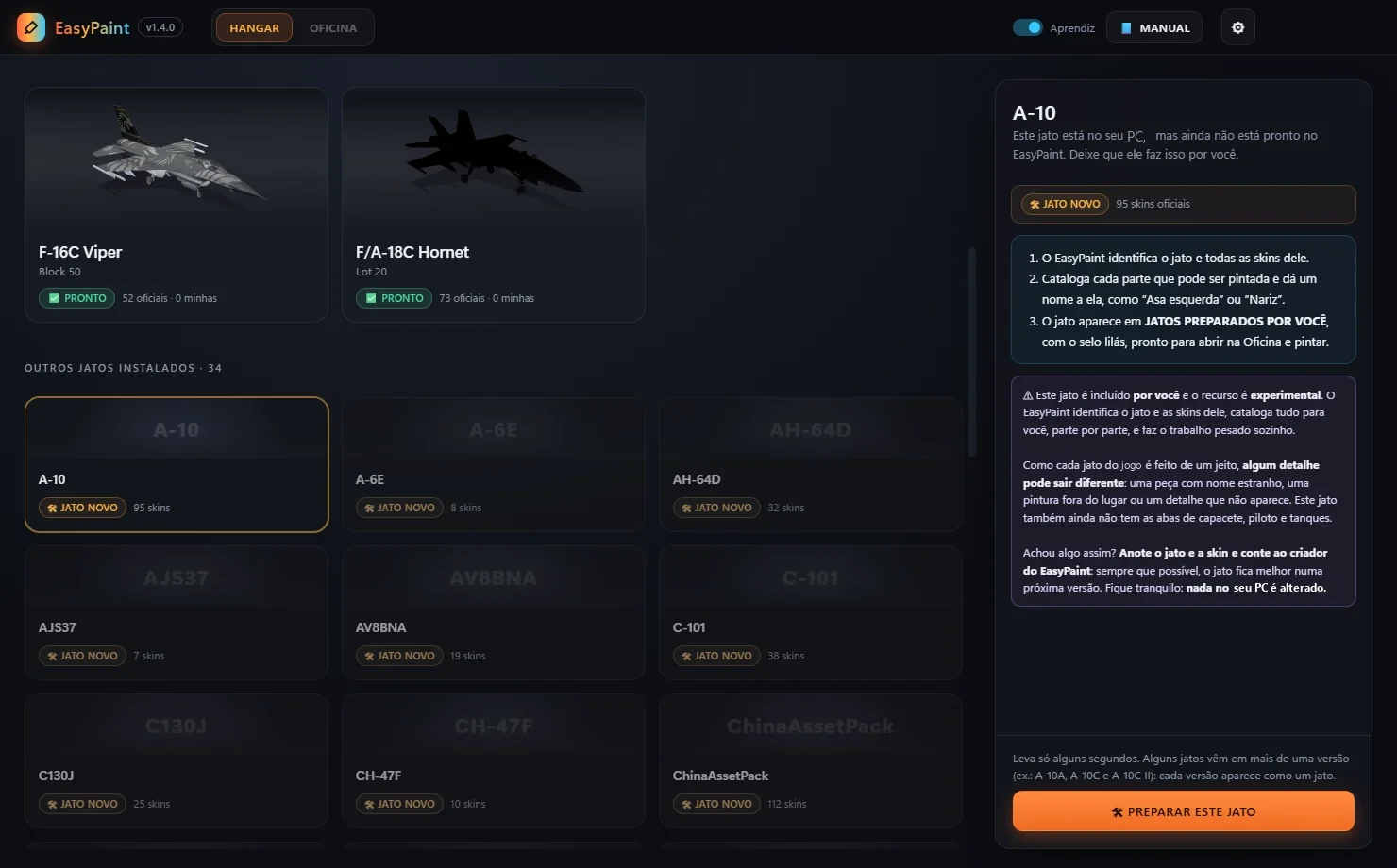
- A new jet (orange 🛠 JATO NOVO New jet badge).
- What's going to happen, in 3 steps.
- The experimental notice: read it before you start.
- 🛠 PREPARAR ESTE JATO Prepare this jet: a few seconds later, the jet is ready.
EasyPaint identifies the jet and its skins, catalogs every paintable part and does the heavy lifting for you. The jet moves to JATOS PREPARADOS POR VOCÊ Jets you prepared, with the purple 🧪 JATO DO USUÁRIO User jet badge.
It's experimental. Since every jet in the sim is built a little differently, some details may come out wrong (a part with an odd name, paint in the wrong place), and these jets don't have the helmet, pilot and tanks tabs yet. Spotted something like that? Write down the jet and the skin and let the EasyPaint developer know. Nothing in your sim is changed. If you like, DESFAZER PREPARO Undo preparation removes the jet from the list.
18Settings
The ⚙ button in the top corner opens Configurações Settings. Every change takes effect right away.
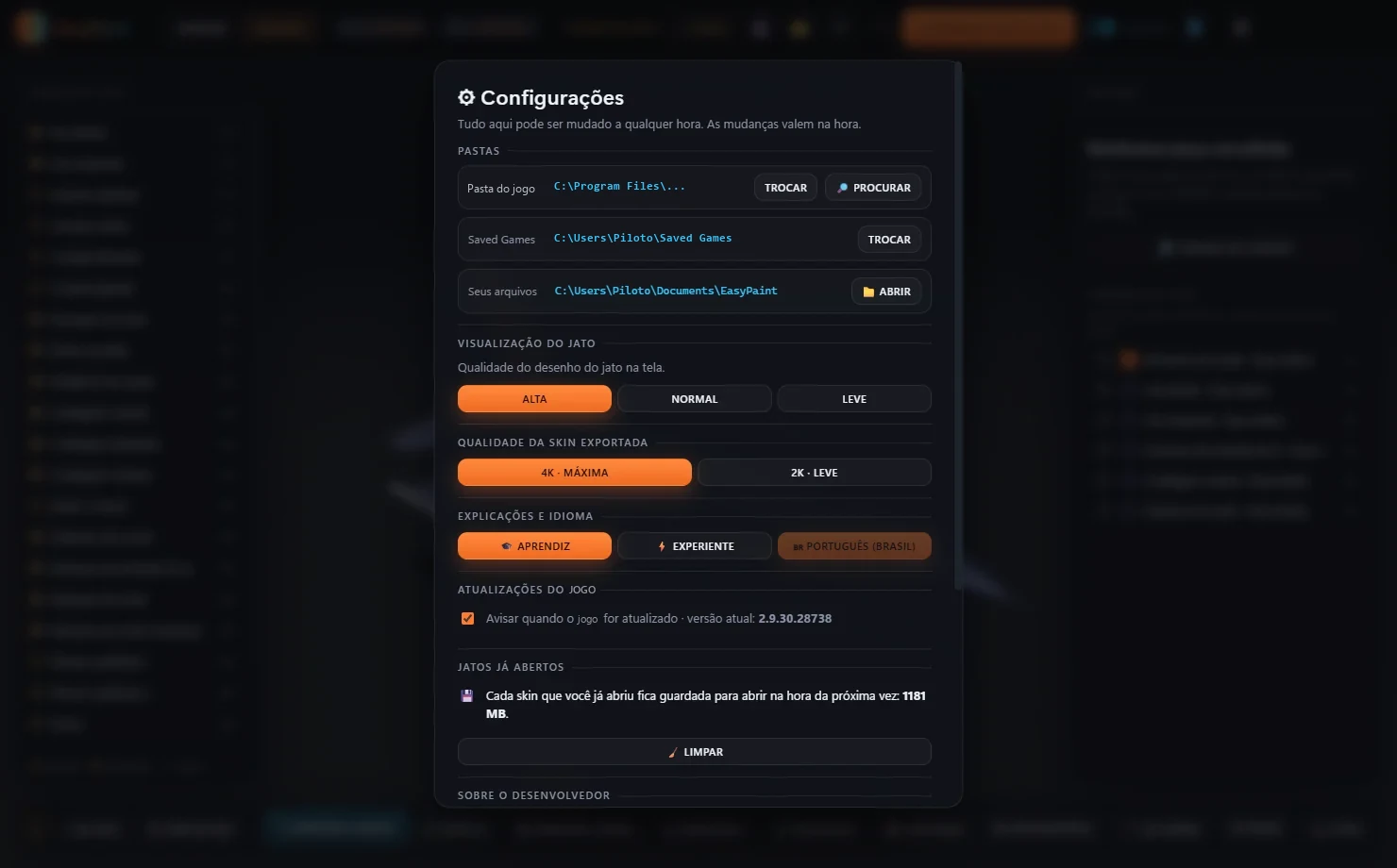
- Folders: where your sim is and where your skins and projects are kept. Only change these if EasyPaint couldn't find them on its own.
- Jet display quality: high, normal or light. If the jet stutters when you rotate it, use NORMAL or LEVE Light.
- Exported skin quality: 4K (maximum) or 2K (light, good for sharing with your squadron online).
- Modo Aprendiz Learner or Experiente Experienced mode for the help cards.
Further down: the alert for when the sim gets updated, cleanup of jets you've already opened (frees up disk space), 📘 MANUAL DO USUÁRIO User manual, the EasyPaint version and the developer's contact.
19Keyboard shortcuts
| Key | What it does |
|---|---|
| 1 to 5 | views: 3/4, front, side, top, bottom |
| B | airbrush |
| M | with the airbrush on: symmetry |
| E | emblems · with an emblem selected: R rotates, [ ] resize, the arrow keys move it |
| C | textures and camo |
| A | before and after |
| L | view from a distance |
| G · F | auto-spin · take a photo |
| Ctrl+Z · Ctrl+Y | undo · redo |
| Ctrl+S · Ctrl+O · Ctrl+N | save · open project · new |
| Ctrl+E | export to the sim |
| Esc | cancels whatever you're doing |
Can't remember them? No problem: each button's shortcut shows up on its help card when you hover over it.